Reducing radiation from Wi-Fi
Wi-Fi is the strongest source of indoor microwave radiation and is most commonly used to provide a wireless connection to fixed broadband. This connection is managed by a device called a router. Routers usually have four connectors for network cables, enabling you to switch off the Wi-Fi and continue surfing via cable. However, there is a catch...
Switching off the Wi-Fi on your router may not eliminate radiation. Use a microwave radiation meter to be absolutely sure. This radiation consists of radio signals that contain information about the Wi-Fi network, like the announcement 'You are listening to Radio 4'. If this information is removed, the network will not be visible to anyone who wants to connect, meaning the function will be effectively switched off, even though the radiation will continue. Finally, not all mobile phones and tablets can use cable connections.
Nothing is better than switching off Wi-Fi.
Switch off Wi-Fi with a button
The lucky ones have a button on the router that turns off the Wi-Fi and the radiation. If the router has Wi-Fi on the frequencies 2.4 gigahertz and 5 gigahertz, the button regulates both frequencies.
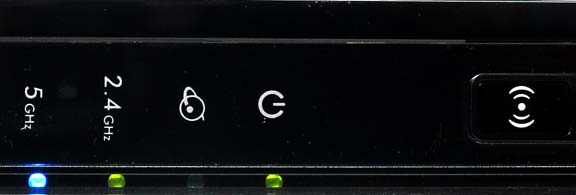
The Netgear WNDR4500 transmits Wi-Fi at both 2.4 GHz and 5 GHz. The button on the far right with double brackets around the dot switches off Wi-Fi at both 2.4 GHz and 5 GHz. When the blue and green lights on the left go out, the radiation is switched off (tested).

The Zyxel P-2812HNU-F1 vT has a blue button that is used to switch off Wi-Fi. The router stops emitting radiation when the Wireless light goes out (tested). This router only uses 2.4 GHz and has one indicator light for Wi-Fi, labelled 'Wireless'.

Sagemcom F@ST 3686 V3 CH. Hold down the button labelled ‘WI-FI’ until the lights labelled ‘2.4G’ and ‘5G’ start flashing. When they stop flashing, the radiation is switched off. Tested on Sagemcom F@ST 3686 V3 CH. According to the installation guides, it should work with other Sagemcom F@ST routers if they av a ‘WI-FI’ button.
Switch off Wi-Fi without a button
If you have bought your router yourself, you can always make settings such as turning off Wi-Fi on the router's ‘homepage’. If the router was included in the Internet subscription, the option may be locked. The settings are made with the usual browser. Modern routers have the IP-address of the ‘home page’ on the bottom, printed or on a sticker. Along with the address, there is probably a user name/admin and password for the ‘home’ page. Before changing any settings, first check how to perform a factory reset of the router. This is in case something does not work as intended. Factory reset

Label on the bottom of the Netgear WNDR4500. The factory default login settings are ‘admin’ as username and ‘password’ as password.

Label on the bottom of the Technicolor TG799vac Xtream. The IP-address of the router is labelled as ‘Gateway LINK’ and the password which is unique to each router as ‘Gateway PASSWORD’.
To access the router's ‘home page’, you
do as usual when surfing the Internet but this time you are
typing the router's address in the browser's address bar exactly
as it is written on the back of the router starting with the
'h'.
For example, like this: http://192.168.10.1
There may be other numbers and according to the label on
Netgear's router in the picture above, you should write
http://www.routerlogin.net as for regular websites. The router
should respond by requesting a username and password. If nothing
happens, the router is probably included in the Internet
subscription and changes can only be made by the ISP's customer
service.
There is no address label under the router
The IP-address of the router can be found in the network settings of all connected computers and can be read in plain text. Here's how to do it:
2. System Settings (System Preferences on older Macs)
3. A new window will open. Click on Network.
4. Next to 'Router' is the address of the router.
2. Ethernet.
3. USB 10/100 LAN.
4. 'Router' shows the address of the router.
2. Type 'comm' and Windows will suggest Command Prompt.
3. Select 'Open' or press the Return key to open a black window with a flashing line inside.
4. Type 'ipconfig' without quotation marks and press Enter.
5. A number of lines displaying settings for internet connectivity will be displayed. The line 'Default Gateway' together with its four groups of numbers separated by dots are also the address of the router.
2. Tap Settings (the cogwheel) on the home screen.
3. Tap Wi-Fi or Network & Settings then Wi-Fi (this depends on the phone brand).
4. Tap on your Wi-Fi network.
5. You can now view details about your network by...
6. How? This depends on the phone's manufacturer. Either tap and hold on your network name, or tap on the '>' sign or cogwheel or three dots next to it.
7. You may need to tap on 'Advanced' or 'Details'.
8. 'Router' or 'Default gateway' is the address of the router. If your phone shows your IP address but not the router's, then the first three groups of numbers in your address will be the same as the router's. Change the fourth group to either 1 or 255 when you try to log in to the router.
Have no username and password
A common problem. That's why manufacturers have begun to print the login details on the bottom of the router or on a label to be attached to the router. If you don't have a username and password, you have to read the manual or search online and hope that all routers of the same make and model have the same password. Search by manufacturer name, model and router password. See also ‘It doesn't work’ at the bottom of this page.
On the routers ‘home page’
There is no standard for what a router's home page should look like. Here are two examples: Both routers use 2.4GHz and 5GHz for Wi-Fi. If there is no heading for 5 GHz, then the router only uses 2.4 GHz. Settings for Wi-Fi are often found under headings such as "Wireless," "Router Radio," or "Access Point."

On the first page of Technicolor's settings, Wireless is displayed. Click on the cogwheels. The router also has an indicator light for DECT cordless phone but there is no possibility to switch off that radiation which is stronger than the one from Wi-Fi. Our test routers had not DECT radiation enabled.
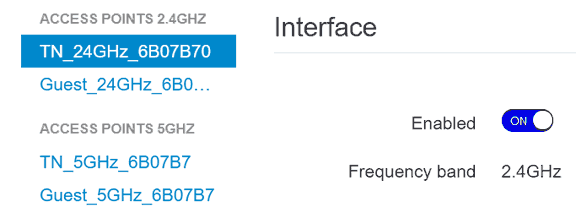
The Technicolor TG799vac transmits Wi-Fi at both 2.4 and 5GHz. Click on TN_... in column 'Access points' to the left. Change 'Enabled' to 'off' to switch off 2.4 GHz.

Repeat the procedure for Wi-Fi 5GHz.
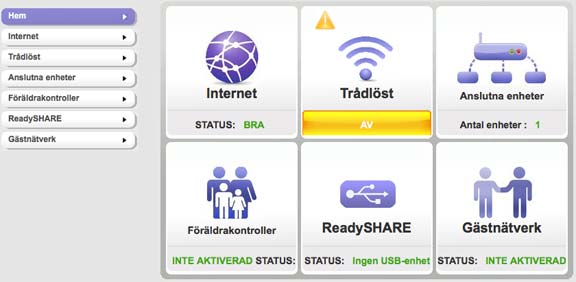
The Wi-Fi is turned off using the button on the router, and the 'Wireless' indicator is yellow as a warning.

Clicking on 'Wireless' displays the settings. This router transmits Wi-Fi at both 2.4 GHz and 5 GHz, and the settings are configured separately for each frequency. The 5 GHz option is visible at the bottom of the picture. If the option 'Enable wireless router radio' is not selected, Wi-Fi is switched off.
It does not work
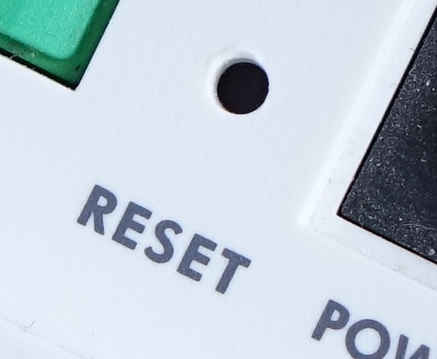
The solution is to perform a factory reset. Any unusual settings, usernames and passwords will revert to the default settings that the router had when it was new. Turn off the router, then use a pointed object to press the button located under the round hole marked 'Reset'. Start the router while holding down the button and wait a few seconds before releasing it. Some routers require the button to be held down for a longer time, or until an indicator light starts flashing in a certain way. Once the router has restarted, all wireless functions will be active, including DECT if the router has this feature.